Changing Cabinet Width and Rebuilding 3D Drawers
Modifying a ready 3D cabinet: width slider recalculates panels, plinth, and legs. Rebuild the interior from scratch — partitions, drawers, handles.
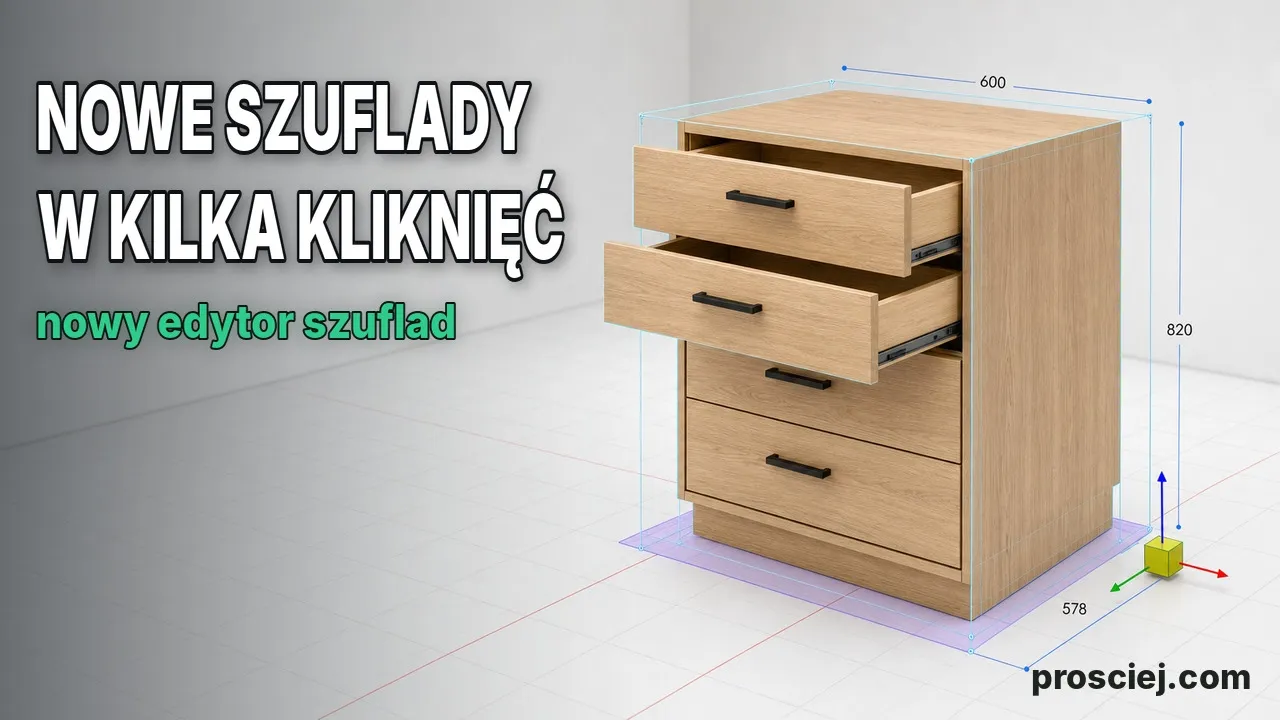
The client changed their mind: the chest of drawers needs to be wider. I take the cabinet with drawers from the previous episode, stretch it using the slider, and rebuild the interior from scratch — without drawing the panels a second time.
What I click in the clip
- Select the cabinet → "Width" slider in the right column. The fronts, sides, plinth, and legs recalculate together.
- Select the old drawers and delete them — after stretching, they are too wide.
- "Simpler" → "Smart elements…" → "Vertical partitions": three → "Apply".
- "Drawers" → "Point to location" → click each niche → "Insert drawer".
- Click the drawer → "Fittings" → railing handle → "Set handle position" → top, center → "Apply to selected".
Changing cabinet width with a slider, not from scratch
Before you move the slider, the program shows an arrow along the axis and highlights the face that will move. There is no "retype dimensions" step: sides, top/bottom panels, back, and fronts get new dimensions, while the panel list, pricing, and DXF files are calculated from the very same model. The legs reposition automatically under the wider carcass, and the plinth, whose height depends on the legs, extends along with it. If the cabinet stands in a row, neighboring cabinets shift by the exact same value — I show this in the episode on countertops and plinths.
Entering a dimension in a large project no longer freezes the editor for over a second: the same change now locks it for a much shorter time. That doesn't mean "instantly" and doesn't apply to every single click — the cost of selecting a cabinet in a massive layout is still on the to-do list. I showed a test on a full layout in the performance test episode.
Drawers after stretching: delete and rebuild the interior from scratch
A drawer stretched along with the carcass is geometrically correct, but nobody wants a front spanning the full width of the chest of drawers. You delete the old drawers and divide the interior anew in "Smart elements": set the number of vertical partitions and click "Apply" — the partitions rebuild inside the furniture piece while the carcass stays put. Three partitions yield four niches in a row.
A real partition, not a helper line, because a drawer needs a panel on both sides to screw the slide into. Where this rule comes from — in the drawer cabinet episode.
Drawers and handles in the new niches
Click each niche with the drawer tool and confirm with "Insert drawer" — a tool tip shows the dimensions before insertion. The "Handle position" window opens immediately on the elevation view of the entire piece: you see all the new fronts, place the railing handle top-center on one front, and "Apply to selected" copies it to the rest in a single undo step.
What remains after the modification
The same furniture piece, new width, new drawers — and instantly updated panel list, PDF quote, and DXF files, all calculated directly from the model. I show the entire process from room dimensions to DXF in the first demo, and you can try modifying furniture without an account in the editor demo.
More articles
Dividing Cabinets into Drawers: Front Heights in 3D
Divide cabinets into drawers in 3D: set front heights, add internal drawers, leave open spaces, configure handles, and adjust dimensions easily.

3D Furniture Render: Lights, LEDs, and Roof Windows
3D furniture rendering in browser: lamps, LED strips, roof windows, token-free Prosciej Render, and client AI visualization.