How to design a drawer cabinet in 3D in one minute
Drawer cabinet in 3D software for carpenters: auxiliary divisions define niches, insert drawers with one click, or join two for a cargo drawer.
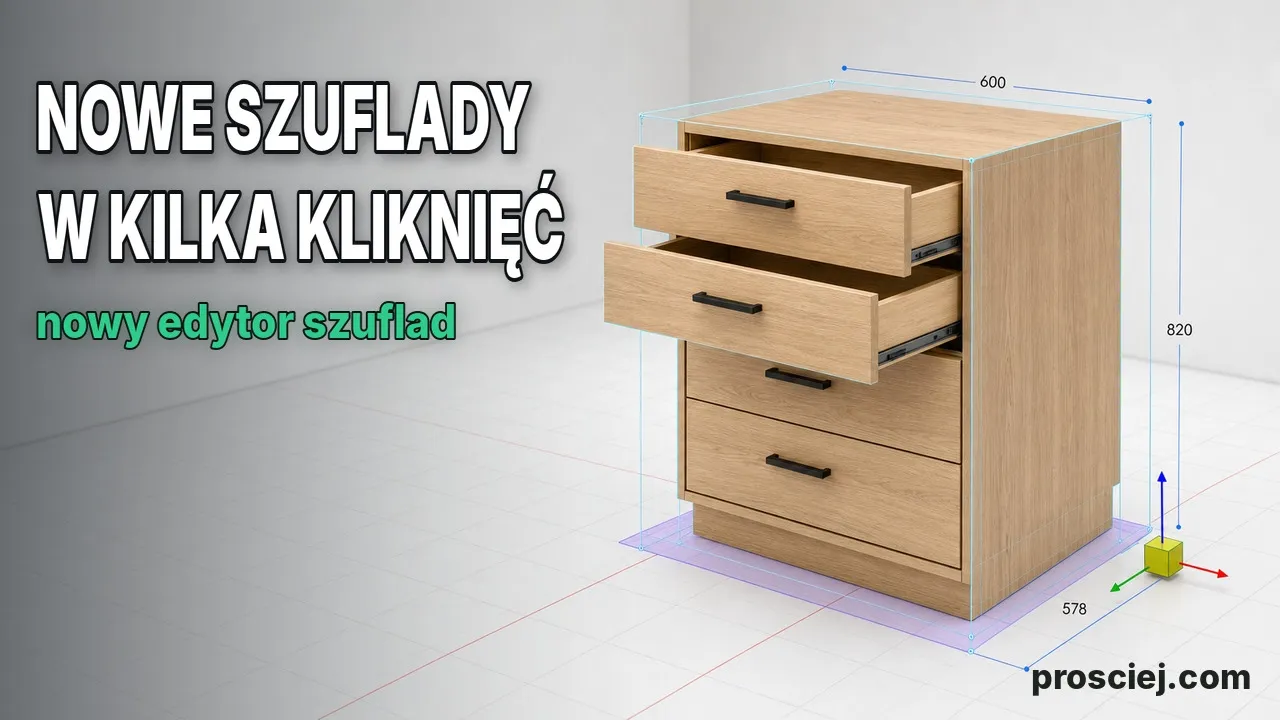
A minute and a half from an empty scene to a chest of drawers with legs, plinth, and knobs. You don't build drawers out of boards: you set up niches, and the software builds the box, bottom, and front.
What I click in the clip
- “Add furniture” — a ready carcass appears on the scene.
- “Simpler” → “Smart elements…” → “Auxiliary divisions”: the number of equal vertical sections, i.e., the number of niches.
- “Drawers” → “Point location” → click a niche → “Insert drawer”; two niches at once give a cargo drawer.
- “Finishing”: slider “Leg height (mm)” and toggle “Plinth”.
- Click a drawer → “Hardware” → knob → “Set handle position” → “Apply to selected”.
Auxiliary divisions instead of shelves in the carcass
Auxiliary divisions are light blue lines that divide the carcass niche into equal parts. They are not boards — they do not enter the parts list or quote. They snap draggable elements like a magnet and define niches for smart elements. Three vertical sections mean three niches for three drawers, without a single shelf in the carcass.
A drawer always takes the entire width of the niche: there is no board on the auxiliary line to screw a runner into. Two drawers side by side require a real vertical divider.
Inserting drawers: click a niche, “Insert drawer”
You click sections of the same niche, the tooltip at the cursor shows the drawer dimension in millimeters and the “Insert drawer” button. Two adjacent niches selected together give one tall drawer, for example for bottle cargo. You choose the bottom next to it: HDF or full board. The box, bottom, and front are regular parts — they go to the parts list, PDF quote, and DXF nesting layout along with the carcass.
Handle on a drawer without opening its front
Click a drawer and you instantly get the “Hardware” section — no need to double-click into the front itself. You select a knob or pull handle, the fitting mounts on the front and is immediately selected. In the “Handle position” window you turn on the snapping grid with vertical divisions, set the margin from the edge in millimeters, and “Apply to selected” copies the setting to all fronts of the dresser — I describe this window in the article on handles, and copying in the article on worktops and plinths.
Legs, plinth, and what next
You enable legs and plinth in the “Finishing” section just like with a door cabinet — there I describe leg height and plinth calculated from legs. I show the process from room dimensions to quoting and DXF in the first demo, and you can build this dresser without an account in the editor demo.
More articles
Dividing Cabinets into Drawers: Front Heights in 3D
Divide cabinets into drawers in 3D: set front heights, add internal drawers, leave open spaces, configure handles, and adjust dimensions easily.

3D Furniture Render: Lights, LEDs, and Roof Windows
3D furniture rendering in browser: lamps, LED strips, roof windows, token-free Prosciej Render, and client AI visualization.