How to design a door cabinet in 3D in one minute
A door cabinet in 3D software for carpenters: carcass in one click, doors in the niche, legs, plinth, and rail handle. One minute of clicking.
One minute of clicking from an empty scene to a cabinet with a pair of doors, on legs, with a plinth and handles. You don't draw any panel manually: the software adds the carcass, fronts, and hardware.
What I click in the one-minute clip
- "Add furniture" — a complete carcass appears: sides, tops, bottoms, and back, set to the default project depth.
- "Easier" → "Smart elements…" → "Doors" → "Point location".
- Click in the left half of the niche, click in the right, "Insert doors" in the pop-up near the cursor.
- In the same window, under the "Finishing" section: "Leg height (mm)" slider and "Plinth" toggle.
- Right column → "Hardware" → "Set handle position" → rail → "Select all" → "Apply to selected".
Cabinet with doors: single door or a pair
You don't dimension the doors — you select the niche. Clicks on one side merge into a single door, while left and right halves create a pair. Before clicking "Insert doors", the pop-up shows the door dimensions including the gap from the project settings. You specify the selection range yourself — the program doesn't guess.
The tool recognizes the cabinet interior: shelves, "Auxiliary divisions" lines, and drawer front faces. A bank of drawers at the bottom with empty space above results in a door positioned precisely over the drawers — without a dummy shelf you'd have to delete later. Once confirmed, the piece of furniture remains selected.
Hinge side: left, right, or automatic
Select the door: the right column features "Hinge side" — "Auto (Left)", "Left", or "Right". The software identifies the side automatically, with paired doors opening from the center; if it gets it wrong, you can adjust it manually. This is a production decision: hinge holes are drilled on this side, so space must be left for opening. Doors on rotated cabinets, corner units, or under slants open correctly, and the handle moves with the door.
Legs and plinth in two clicks
Leg height is a number on a slider — from the floor to the bottom of the carcass — with a default per project that you can override on any selected cabinet. Enable the plinth with a toggle; its height is read-only, derived from the leg height minus clearance, ensuring the board stays aligned with the legs. In project settings, you set the default depth for new furniture and whether new cabinets are generated with legs and a plinth by default. I demonstrate a continuous plinth run and an L-shaped corner in the episode on worktops and plinths.
What to do next with the finished cabinet
Set the rail handle once, and "Apply to selected" mirrors it onto the second door — learn more in the episode on handles. The doors are standard panels: they go into the panel list, PDF quote, and DXF nesting layout along with the carcass. Legs and handles are not included in exports — the hardware list is a separate, planned feature. I cover the workflow from room dimensions to DXF in the first demo, and you can build this cabinet without an account in the editor demo.
More articles
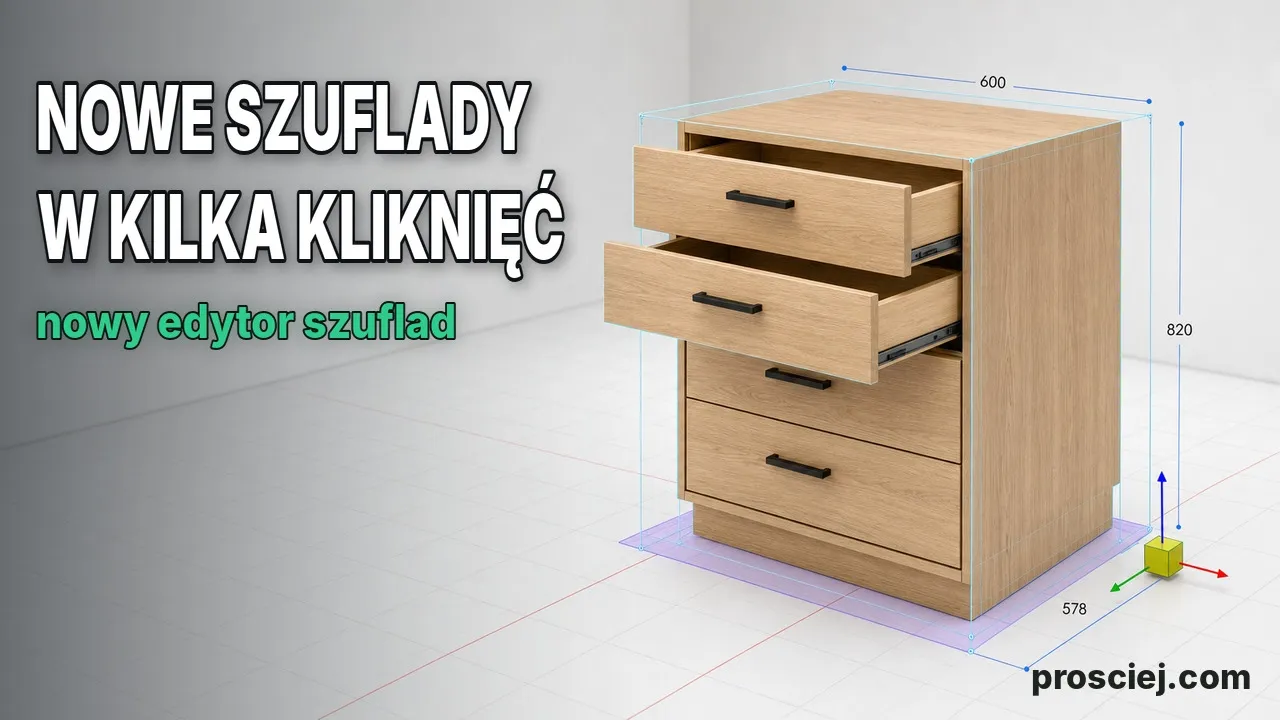
Dividing Cabinets into Drawers: Front Heights in 3D
Divide cabinets into drawers in 3D: set front heights, add internal drawers, leave open spaces, configure handles, and adjust dimensions easily.

3D Furniture Render: Lights, LEDs, and Roof Windows
3D furniture rendering in browser: lamps, LED strips, roof windows, token-free Prosciej Render, and client AI visualization.