3D Kitchen Built-in: Base and Wall Cabinets Effortlessly
3D kitchen built-in: base and wall cabinets with custom depth, library units fitted to size, bottom cladding, and full-length countertop.
Part three of the series on the built-in furniture creator. After a full-wall wardrobe, I'm using it to design a kitchen: base and wall cabinets on a single wall, from a bare wall to the countertop, without calculating panel sizes.
Kitchen built-in: base and wall cabinets on one wall
- In the top bar, click "Create built-in", then click the wall number.
- "Add vertical" on both sides — guide lines that leave space for filler strips.
- "Split wall" — the creator generates a lower zone, an upper zone, and the clearance between them. You can drag the boundary and the clearance itself, or click the dimension and type a number.
- Each zone has its own depth — 600 mm at the bottom and 330 mm at the top in the recording. You can offset base cabinets from the wall for plumbing and electrics while the wall cabinets remain flush against the wall.
Cabinet sections and locking dimensions
Sections in the upper and lower zones are independent, so the top does not need to mirror the bottom layout. "Align top" and "Align bottom" center each zone separately. Locking a section locks its position and dimensions: dragging an adjacent section stops at the lock instead of taking over its width. "Reset view" restores the wall view if you accidentally rotate the camera.
Library cabinets fitted to the grid cell
You drop a ready-made cabinet from the library or scene into a cell, and the creator shows what dimensions it will be converted to. In the upper zone, the cabinet hangs together with its handle, while in the lower zone, it immediately gets cabinet legs. When you widen a section, the cabinet expands along with its shelves while maintaining front gaps. A single library cabinet covers multiple widths.
Built-in tab: adjustments without leaving the creator
After creating the first cabinet carcass, a "Built-in" tab appears next to "Room". It displays only the furniture belonging to that unit, allowing you to add shelves, doors, or drawers using "Smart elements". Doors spanning multiple compartments are now added in just two clicks — on the first and last compartment. Clicking "Room" returns you to the creator exactly where you left off. Making changes later works the same way: click "Create built-in" on that wall again, edit the section, and the cabinets rebuild automatically.
Bottom cladding under wall cabinets and full-length countertop
In "Finishes", the creator suggests filler strips and bottom cladding (a panel underneath the wall cabinets). Adjacent sections receive a single continuous panel that extends up to the fillers. The countertop on the base units also covers the end fillers, and you can select its finish from the photo catalog. The countertop displays dimensions, without pricing.
What's next
You can add plinths and end panels as shown in the episode on countertops and plinths. You can try the creator without an account in the editor demo.
More articles
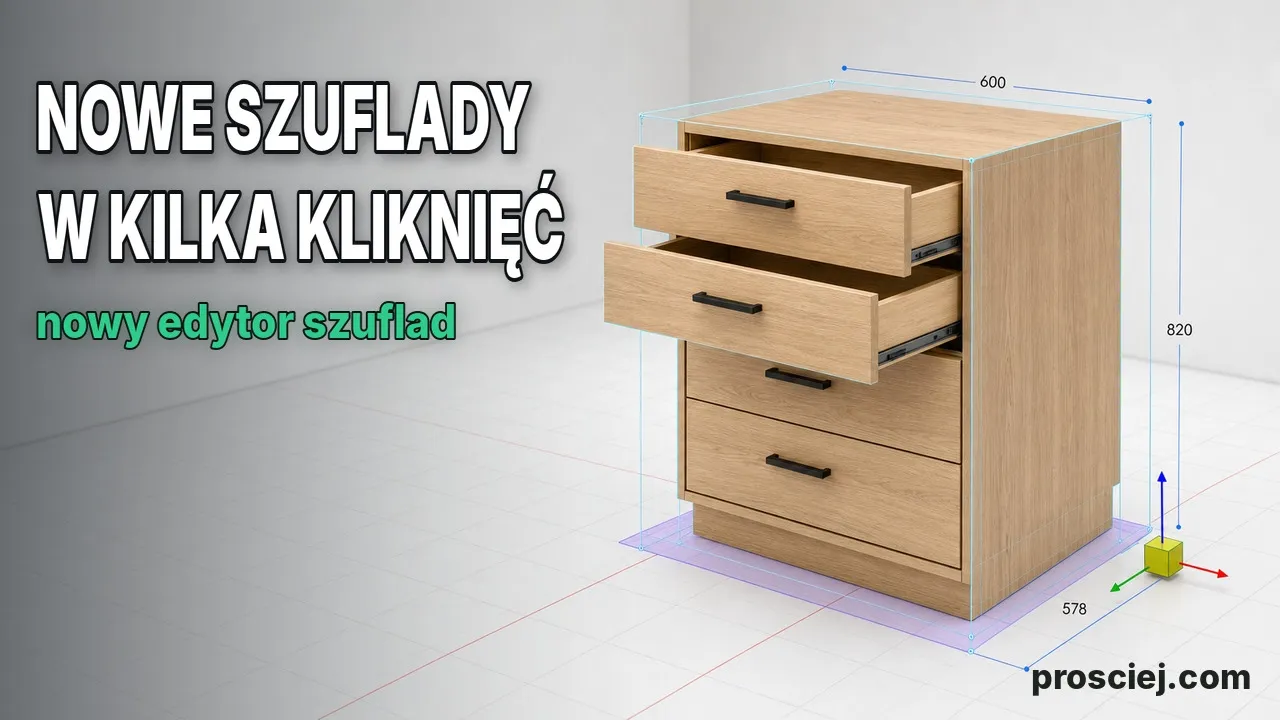
Dividing Cabinets into Drawers: Front Heights in 3D
Divide cabinets into drawers in 3D: set front heights, add internal drawers, leave open spaces, configure handles, and adjust dimensions easily.
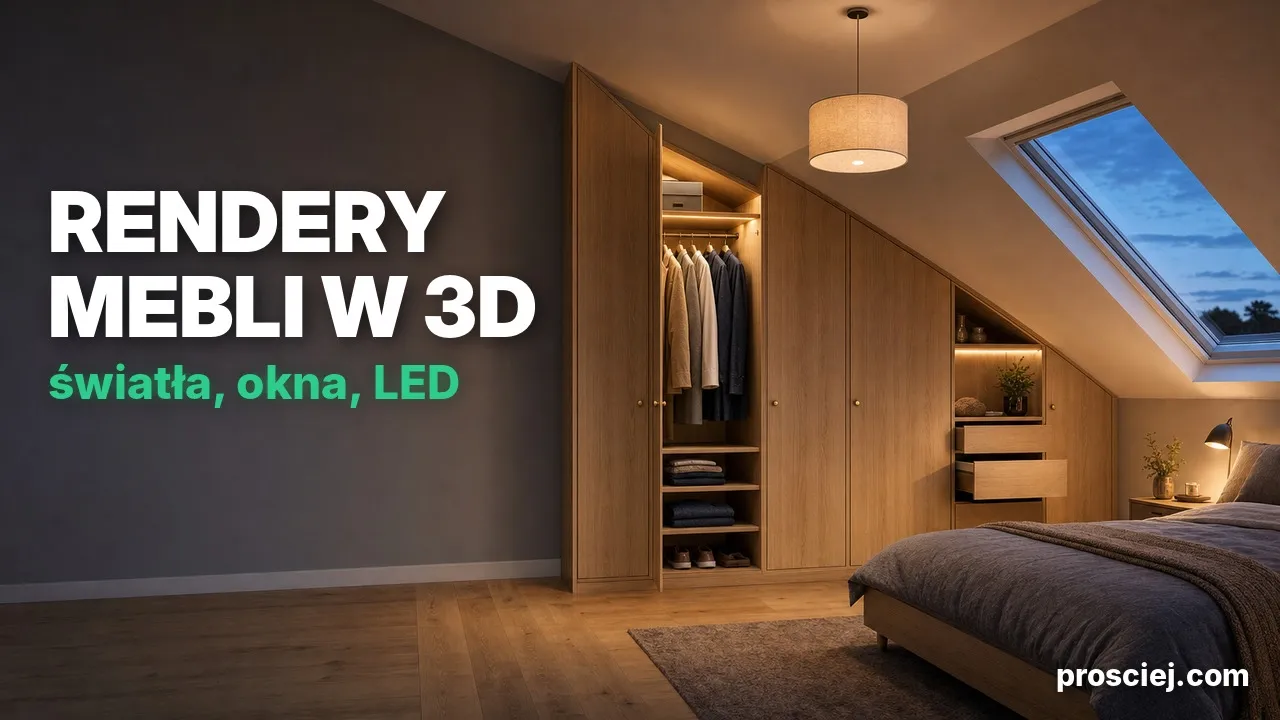
3D Furniture Render: Lights, LEDs, and Roof Windows
3D furniture rendering in browser: lamps, LED strips, roof windows, token-free Prosciej Render, and client AI visualization.